

やりたいこと:Googleカレンダーでコンテンツの投稿予定をみたい
私はNotionでコンテンツカレンダーをデータベースとして管理しています。
これらをGoogleカレンダーでも見れるようなプログラムを作っていこうと思います。
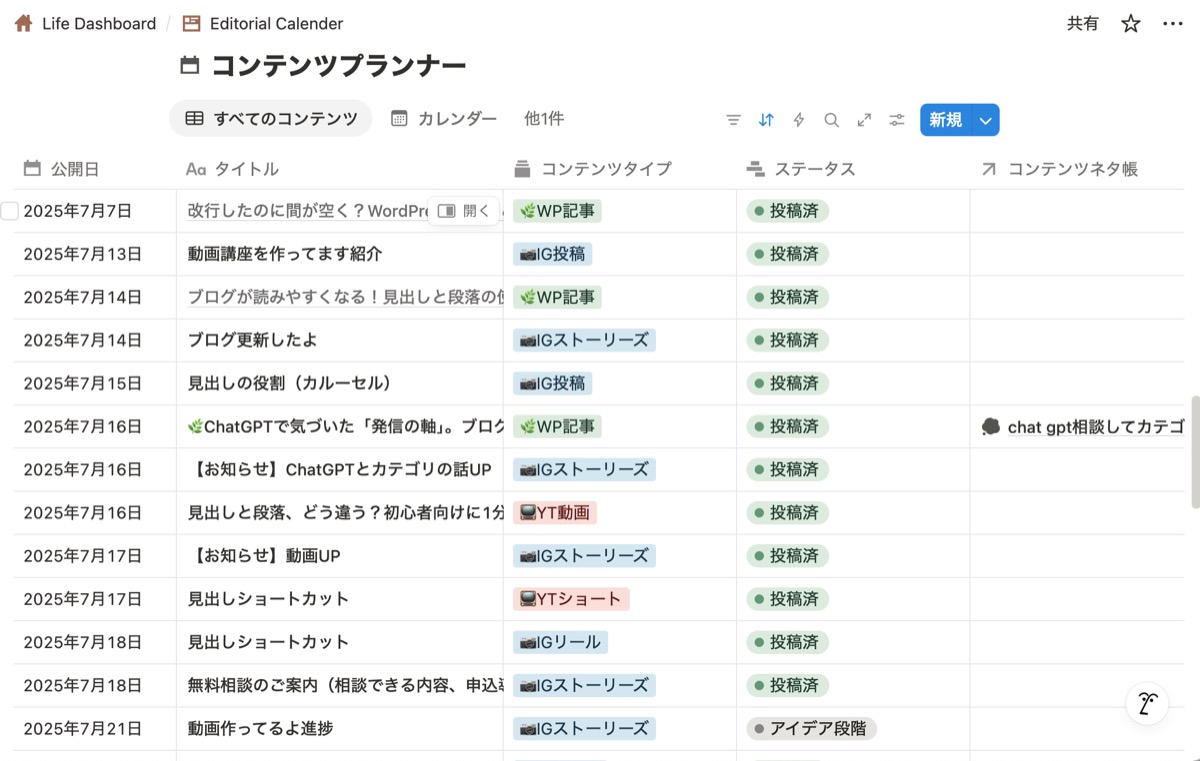
NotionのDBの主な項目
| 項目名 | プロパティの種類 | 用途 |
|---|---|---|
| 公開日 | 日付 | イベントの開始日/時刻 |
| タイトル | テキスト | カレンダーイベントの件名に使用 |
| コンテンツタイプ | マルチセレクト (WP記事、IG投稿、YB動画など) | 絵文字やカラー設定に使用(例:Instagramなら📷) |
| ステータス | ステータス (アイデア段階、制作中、投稿済など) | 投稿準備状況などの確認に使用(イベント詳細など) |
| イベントID | テキスト | GoogleカレンダーのeventIdを保存しておくため |
Notion API連携
GAS接続用のインテグレーション設定
- 🔗 Notion Developersのページを開く
https://www.notion.com/my-integrations - 🔘「+ New integration」をクリック
- 必要事項を入力
- Name:例)「GAS連携カレンダー」
- Associated workspace:自分の作業スペースを選択
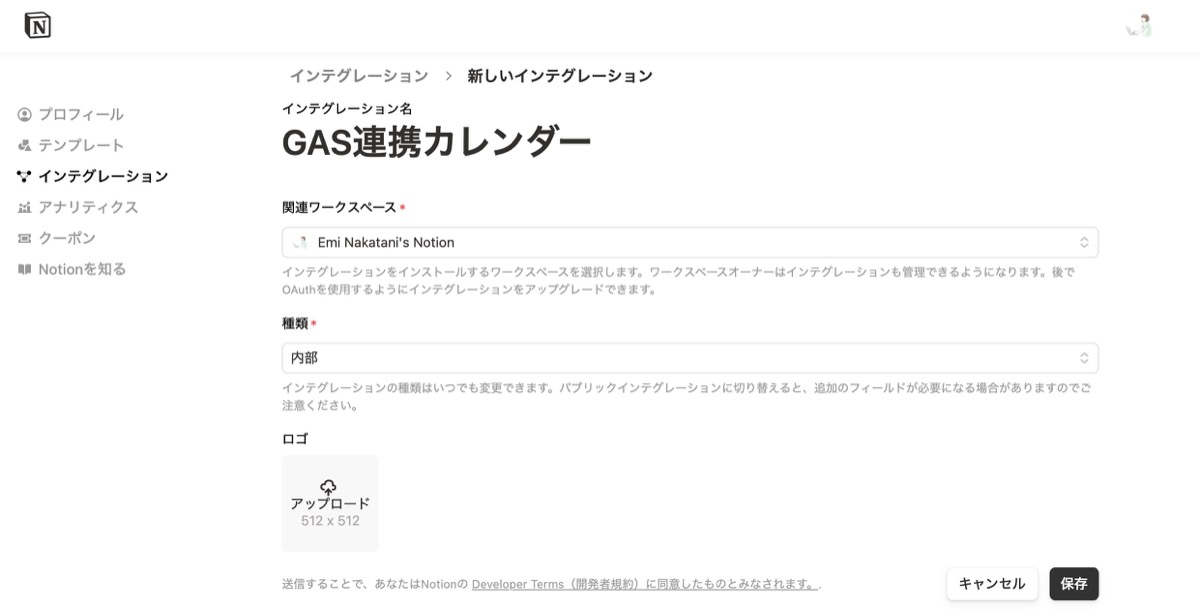
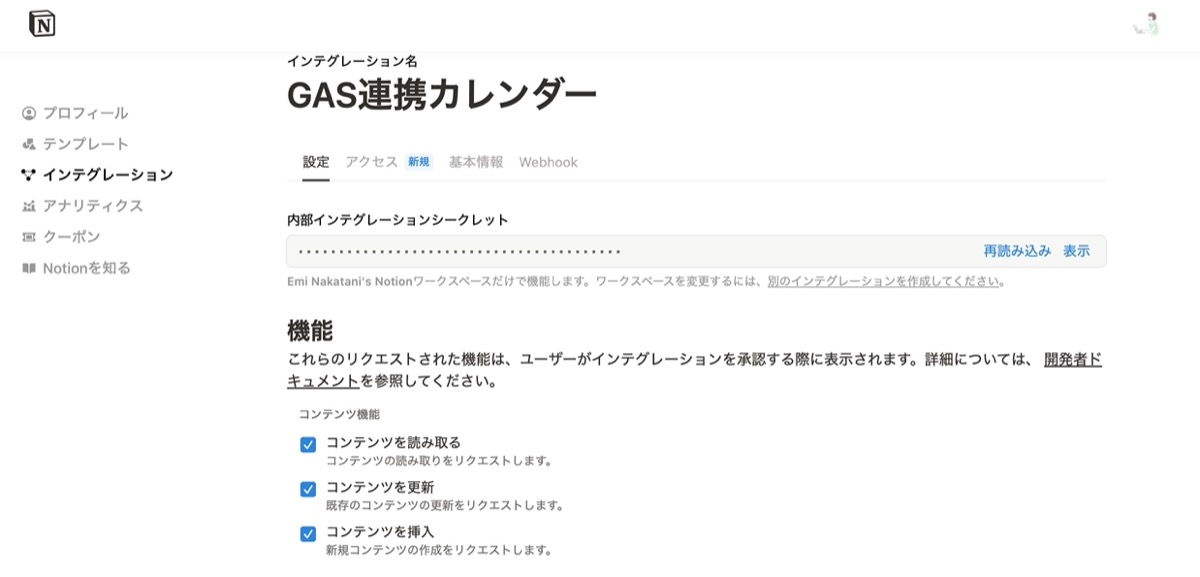
- ✅「コンテンツを読み取る」「コンテンツを更新」にチェック(データ取得・更新のため)
- 🔐「内部インテグレーションシークレット」をコピー(あとでGASで使います)
Notion DBにインテグレーションを接続する
Notionで使いたい「データベースページ」を開く(例:コンテンツプランナー)
右上「…」→「接続」
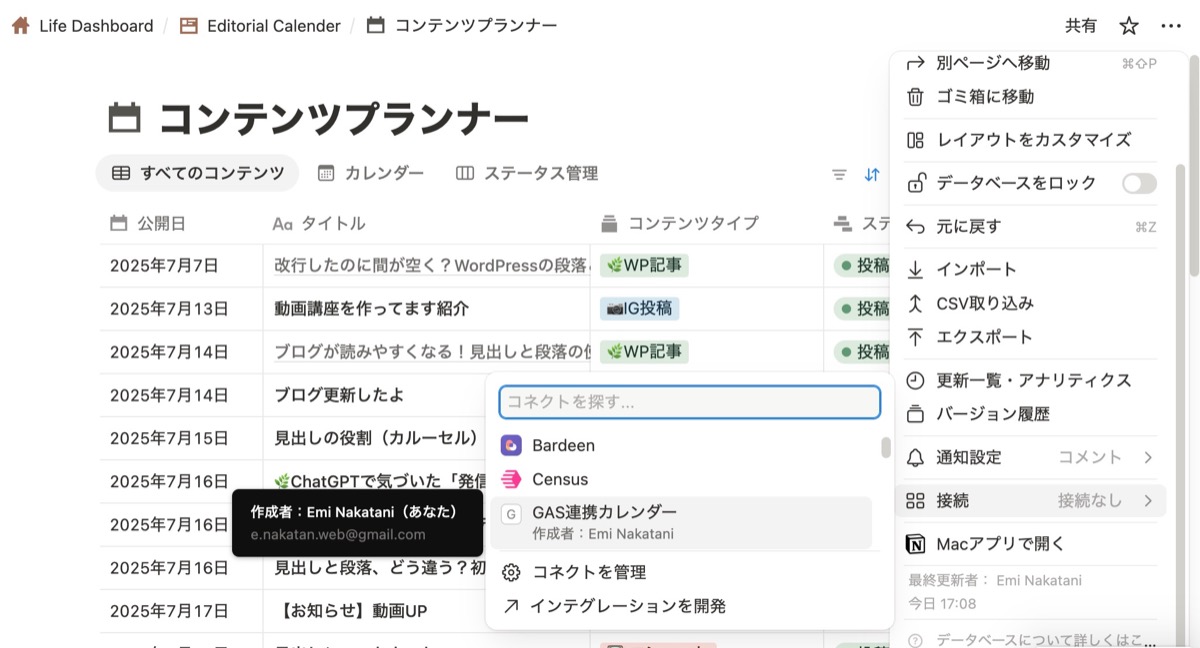
先ほど作成したインテグレーション(例:「GAS連携カレンダー」)を選択する。
データベースIDの取得
データベースページをブラウザで開く
URLの形式が次のようになっています:
例)https://www.notion.so/abc123def4567890ghij0123klmn4567?v=~~~

この「英数字32桁の文字列」が データベースID です

●この後で使う項目
NOTION_SECRET: インテグレーションで取得した「Secretトークン」
DATABASE_ID : 32桁のノーションDBのID
Google Apps Script(GAS)でNotion APIにアクセス
接続テスト
Googleドライブを開く
「新規」→「その他」→「Google Apps Script」
プロジェクト名を「Notion接続テスト」などに変更
以下のコードを貼り付けて保存
const NOTION_TOKEN = 'あなたのNotion統合のシークレットトークン'; // 例: secret_xxxxxx
const DATABASE_ID = 'あなたのデータベースID'; // ハイフンなし32桁

function testNotionConnection() {
  const url = `https://api.notion.com/v1/databases/${DATABASE_ID}`;
  const options = {
    method: "get",
    headers: {
      "Authorization": `Bearer ${NOTION_TOKEN}`,
      "Notion-Version": "2022-06-28", // 最新の安定版日付
      "Content-Type": "application/json",
    },
    muteHttpExceptions: true
  };

  const response = UrlFetchApp.fetch(url, options);
  const statusCode = response.getResponseCode();
  const content = response.getContentText();

  console.log(`📡 接続ステータス: ${statusCode}`);
  console.log(`📄 レスポンス内容: ${content}`);

  if (statusCode === 200) {
    const json = JSON.parse(content);
    console.log(`接続成功!データベース名: ${json.title[0]?.text?.content}`);
  } else {
    console.error("接続失敗。トークン、DB ID、共有設定を確認してください。");
  }
}
上のコードを保存(Ctrl + S)
testNotionConnection() を選択して ▶️ 実行
初回は 認証が求められます
「権限を確認」→左下の詳細を表示→NotionDB接続テスト(安全ではないページ)に移動をクリック
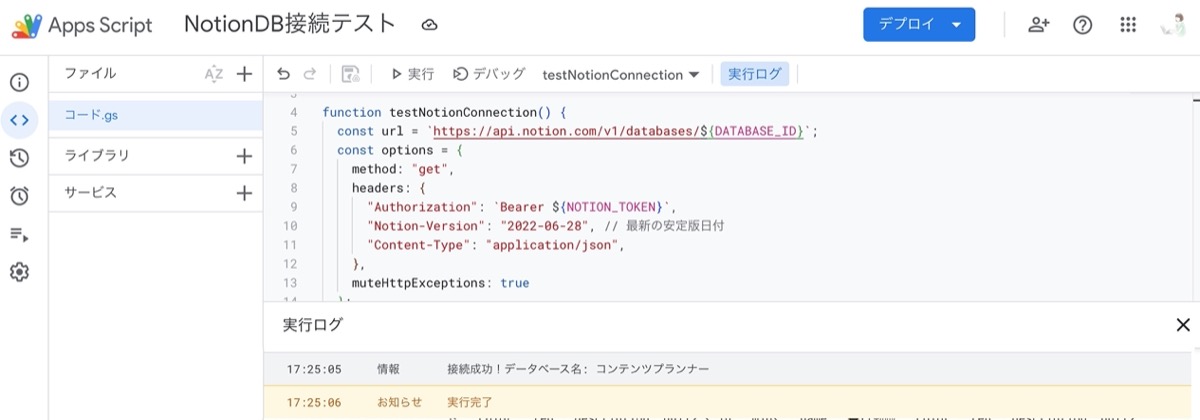
メニュー「表示」→「ログ」または Ctrl + Enter でログを表示
接続成功!データベース名: ◯◯◯ が出ればOK!
Notionデータが取得できるか確認
const NOTION_DB_ID = 'ここにデータベースID';
const NOTION_TOKEN = 'ここにシークレットトークン';
const NOTION_VERSION = '2022-06-28';

function fetchNotionData() {
  const url = `https://api.notion.com/v1/databases/${NOTION_DB_ID}/query`;

  const options = {
    method: 'post',
    headers: {
      'Authorization': `Bearer ${NOTION_TOKEN}`,
      'Notion-Version': NOTION_VERSION,
      'Content-Type': 'application/json',
    },
  };

  const response = UrlFetchApp.fetch(url, options);
  const data = JSON.parse(response.getContentText());

  const results = data.results;

  console.log(`取得件数: ${results.length}`);
  results.forEach((page, i) => {
    const props = page.properties;

    const title = props['タイトル']?.title?.[0]?.plain_text ?? 'タイトルなし';
    const date = props['公開日']?.date?.start ?? '日付なし';
    const contentType = props['コンテンツタイプ']?.multi_select?.map(tag => tag.name).join(', ') ?? 'タイプ未設定';
    const status = props['ステータス']?.status?.name ?? '未設定';

    console.log(`${i + 1}: ${date}|${contentType}|${status}|${title}`);
  });
}
うまくいくと、
1: 2025-09-15|📷IG投稿|画像メディア作成済|無料相談お知らせ (1)
2: 2025-09-01|🌿WP記事|投稿済|無料相談お知らせ (来月)
「日付| コンテンツタイプ | ステータス | タイトル」が、行数分表示される。
Googleカレンダーへ登録
ステップ①:Googleカレンダーとの連携準備
カレンダーIDはGoogleカレンダーの設定>カレンダーの統合>カレンダーIDに記載されている。
xxxx@group.calendar.google.comという形式です。
GASに貼り付けて保存
registerFirstEventToCalendar() を手動実行
カレンダーにイベントが1件追加されるか確認!
const NOTION_API_KEY = 'Notionのトークン';
const DATABASE_ID = 'データベースID';
const CALENDAR_ID = 'カレンダーID'; // 例: xxxx@group.calendar.google.com

const NOTION_API_URL = 'https://api.notion.com/v1/databases/' + DATABASE_ID + '/query';

function registerFirstEventToCalendar() {
  const notionData = fetchNotionData();
  if (!notionData || notionData.length === 0) {
    console.log('Notionデータベースにデータが見つかりません');
    return;
  }

  const first = notionData[0];

  const title = first.title || 'タイトルなし';
  const contentType = first.contentType || '';
  const emojiPrefix = getEmojiPrefix(contentType);
  const start = new Date(first.date);
  const end = new Date(start.getTime() + 30 * 60 * 1000); // 30分後を終了時刻に

  const cal = CalendarApp.getCalendarById(CALENDAR_ID);
  const event = cal.createEvent(`${emojiPrefix}${title}`, start, end);
  console.log(`登録成功: ${event.getTitle()} / ${start}`);
}

// 🔧 Notionからデータを取得(必要な項目だけ)
function fetchNotionData() {
  const options = {
    method: 'post',
    contentType: 'application/json',
    headers: {
      'Authorization': 'Bearer ' + NOTION_API_KEY,
      'Notion-Version': '2022-06-28'
    },
    payload: JSON.stringify({
      page_size: 1,
      sorts: [{ property: '公開日', direction: 'ascending' }]
    })
  };

  const res = UrlFetchApp.fetch(NOTION_API_URL, options);
  const data = JSON.parse(res.getContentText());

  return data.results.map(page => {
    const props = page.properties;
    return {
      title: props['タイトル']?.title?.[0]?.plain_text ?? '',
      contentType: props['コンテンツタイプ']?.multi_select?.[0]?.name ?? '',
      date: props['公開日']?.date?.start ?? null
    };
  });
}

// 🎨 絵文字プレフィックス(コンテンツタイプに応じて)
function getEmojiPrefix(type) {
  if (type.includes('WP')) return '🌿';
  if (type.includes('IG')) return '📷';
  if (type.includes('YT')) return '📺';
  return '';
}
②Notion DBとGoogleカレンダーを同期するコード
そしてこちらができたコード。
- 対象:今日〜来月末
- Youtubeは青、Instagramはピンク、WordPressは緑、投稿前のコンテンツは灰色にセット
- 予定の作成、更新(タイトル、日付、色分け)、削除を行う
- エクセルシートにNotion→Googleカレンダーへの同期ログを書く。
// 事前設定
const NOTION_TOKEN = 'Notionトークン';
const DATABASE_ID = 'データベースID';
const CALENDAR_ID = 'カレンダーID';
const TIMEZONE = 'Asia/Tokyo';

const SPREADSHEET_ID = 'GoogleスプレッドシートのID';
const SHEET_NAME = 'Googleスプレッドシートのシート名';


/**
 * メイン関数:Notion→Googleカレンダー 同期(新規/更新/削除)
 */
async function syncNotionToCalendar() {
  const calendar = CalendarApp.getCalendarById(CALENDAR_ID);
  const tz = Session.getScriptTimeZone();
  const sheet = SpreadsheetApp.openById(SPREADSHEET_ID).getSheetByName(SHEET_NAME);
  sheet.clearContents();
  sheet.appendRow(['処理日時', '処理', 'タイトル','コンテンツタイプ', '開始時刻', 'ステータス', 'event_id']);

  const now = new Date();
  now.setHours(0, 0, 0, 0);
  const until = new Date(now.getFullYear(), now.getMonth() + 2, 0); // 翌月末まで
  const calendarEvents = calendar.getEvents(now, until);
  const calendarEventMap = new Map(calendarEvents.map(e => [e.getId(), e]));

  const notionItems = await fetchNotionPages();
  const notionEventIds = new Set();

  for (const item of notionItems) {
    const { title, contentType, status, date, eventId, pageId } = item;
    if (!date || status === 'アイデア段階') continue;

    const emoji = getEmoji(contentType);
    const finalTitle =`${emoji}${title}`;
    const colorId = getEventColor(contentType, status);
    const start = new Date(date);
    const end = new Date(start.getTime() + 30 * 60 * 1000);

    if (!eventId) {
      const ev = calendar.createEvent(finalTitle, start, end);
      ev.setColor(colorId);
      await updateNotionPage(pageId, ev.getId());
      sheet.appendRow([new Date(), '新規登録', finalTitle, contentType, formatDate(start, tz), status, ev.getId()]);
    } else {
      notionEventIds.add(eventId);
      const ev = calendar.getEventById(eventId);
      if (!ev) {
        const newEv = calendar.createEvent(finalTitle, start, end);
        newEv.setColor(colorId);
        await updateNotionPage(pageId, newEv.getId());
        sheet.appendRow([new Date(), '再作成', finalTitle, contentType, formatDate(start, tz), status, newEv.getId()]);
      } else {
          ev.setTitle(finalTitle);
          ev.setTime(start, end);
          ev.setColor(colorId);
          sheet.appendRow([new Date(), '更新', finalTitle, contentType, formatDate(start, tz), status, eventId]);
      }
    }
  }

  // カレンダーにあってNotionにないイベントは削除
  for (const [id, ev] of calendarEventMap.entries()) {
    if (!notionEventIds.has(id)) {
      ev.deleteEvent();
      sheet.appendRow([new Date(), '削除', ev.getTitle(), '-', formatDate(ev.getStartTime(), tz), '-', id]);
    }
  }
}

function formatDate(date, tz) {
  return Utilities.formatDate(date, tz, 'yyyy-MM-dd HH:mm');
}


// 🔹 Notionから全件取得
async function fetchNotionPages() {
  const url = `https://api.notion.com/v1/databases/${DATABASE_ID}/query`;

  // 今日〜来月末を取得するためのISO文字列を生成
  const today = new Date();
  today.setHours(0, 0, 0, 0); // 今日の0時に設定

  const endOfNextMonth = new Date(today.getFullYear(), today.getMonth() + 2, 0); // 翌月末

  function formatDateToISO(date) {
    return date.toISOString().split('T')[0]; // "YYYY-MM-DD"形式にする
  }

  const payload = {
    page_size: 100,
    sorts: [{ property: '公開日', direction: 'ascending' }],
    filter: {
      property: '公開日',
      date: {
        on_or_after: formatDateToISO(today),
        on_or_before: formatDateToISO(endOfNextMonth)
      }
    }
  };
  const res = UrlFetchApp.fetch(url, {
    method: 'post',
    headers: {
      'Authorization': `Bearer ${NOTION_TOKEN}`,
      'Notion-Version': '2022-06-28',
      'Content-Type': 'application/json',
    },
    payload: JSON.stringify(payload),
  });
  const data = JSON.parse(res.getContentText());

  return data.results.map(p => {
    const props = p.properties;
    return {
      pageId: p.id,
      title: props['タイトル']?.title?.[0]?.plain_text ?? '',
      contentType: props['コンテンツタイプ']?.multi_select?.[0]?.name ?? '',
      status: props['ステータス']?.status?.name ?? '',
      date: props['公開日']?.date?.start,
      eventId: props['event_id']?.rich_text?.[0]?.plain_text ?? ''
    };
  });
}

// Notionにevent_idを書き戻す
async function updateNotionPage(pageId, eventId) {
  const url = `https://api.notion.com/v1/pages/${pageId}`;
  const payload = {
    properties: {
      'イベントID': {
        rich_text: [{ type: 'text', text: { content: eventId } }]
      }
    }
  };

  UrlFetchApp.fetch(url, {
    method: 'patch',
    headers: {
      'Authorization': `Bearer ${NOTION_TOKEN}`,
      'Notion-Version': '2022-06-28',
      'Content-Type': 'application/json'
    },
    payload: JSON.stringify(payload)
  });
}

// 🔹 絵文字変換
function getEmoji(type) {
  if (type.startsWith('🌿')) return '🌿';
  if (type.startsWith('📷')) return '📷';
  if (type.startsWith('📺')) return '📺';
  return '';
}


/**
 * 投稿ステータスと絵文字に応じた色を返す
 */
function getEventColor(contentType, status) {
  if (status === '投稿済') {
    if (contentType.includes('🌿')) return '10'; // 緑:WP
    if (contentType.includes('📷')) return '4';  // 青(ピーコック):Instagram
    if (contentType.includes('📺')) return '7'; // 赤(フラミンゴ):YouTube
  }
  return '8'; // グレー(未投稿など)
}
こんな感じでカレンダーに追記される
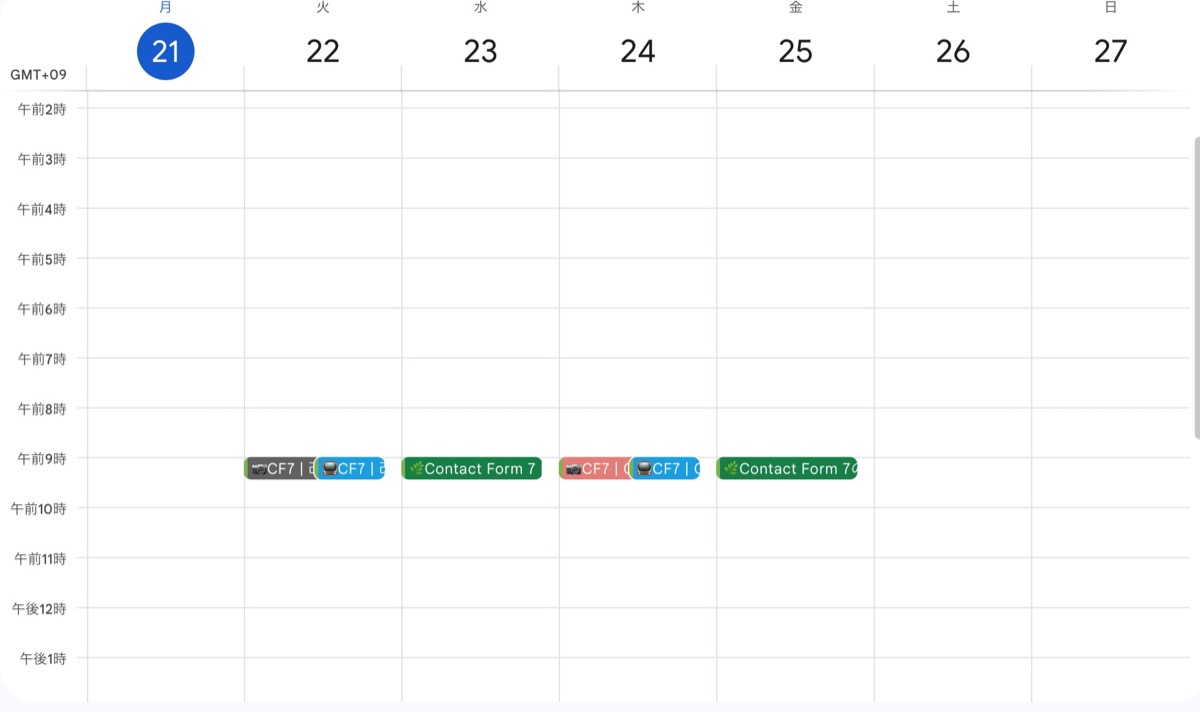
しばらく運用してみて、うまくいきそうだったらアプリにしたいなぁ〜。
Notion -> Googleカレンダー洗い替え方式
Notionで前の行をコピーして作ると、
しばらく使ってみて、Googleカレンダー側は閲覧にしか使わないのでシンプルな洗い替え方式に変更した。
// 事前設定
const NOTION_TOKEN = 'Notionトークン';
const DATABASE_ID = 'データベースID';
const CALENDAR_ID = 'カレンダーID';
const TIMEZONE = 'Asia/Tokyo';

const SPREADSHEET_ID = 'GoogleスプレッドシートのID';
const SHEET_NAME = 'Googleスプレッドシートのシート名';


/**
 * メイン関数:Notion→Googleカレンダー 同期(洗い替え)
 */
async function syncNotionToCalendar() {
  const calendar = CalendarApp.getCalendarById(CALENDAR_ID);
  const tz = Session.getScriptTimeZone();
  const sheet = SpreadsheetApp.openById(SPREADSHEET_ID).getSheetByName(SHEET_NAME);

  // 範囲:今日〜来月末
  const now = new Date();
  now.setHours(0, 0, 0, 0);
  const until = new Date(now.getFullYear(), now.getMonth() + 2, 0);

  // Step1: カレンダーイベント削除
  const existingEvents = calendar.getEvents(now, until);
  let deletedCount = 0;
  for (const ev of existingEvents) {
    ev.deleteEvent();
    deletedCount++;
  }

  // Step2: Notion取得&新規作成
  const notionItems = await fetchNotionPages();
  let createdCount = 0;

  for (const item of notionItems) {
    const { title, contentType, status, date } = item;
    if (!date || status === 'アイデア段階') continue;

    const emoji = getEmoji(contentType);
    const finalTitle = `${emoji}${title}`;
    const colorId = getEventColor(contentType, status);
    const start = new Date(date);
    const end = new Date(start.getTime() + 30 * 60 * 1000);

    if (start >= now) {
      calendar.createEvent(finalTitle, start, end).setColor(colorId);
      createdCount++;
    }
  }

  // Step3: ログ記録(処理日時、削除件数、追加件数)
  sheet.appendRow([
    Utilities.formatDate(new Date(), tz, 'yyyy-MM-dd HH:mm:ss'),
    deletedCount,
    createdCount
  ]);
}


// Notionから全件取得
async function fetchNotionPages() {
  const url = `https://api.notion.com/v1/databases/${DATABASE_ID}/query`;

  // 今日〜来月末を取得するためのISO文字列を生成
  const today = new Date();
  today.setHours(0, 0, 0, 0); // 今日の0時に設定

  const endOfNextMonth = new Date(today.getFullYear(), today.getMonth() + 2, 0); // 翌月末

  function formatDateToISO(date) {
    return date.toISOString().split('T')[0]; // "YYYY-MM-DD"形式にする
  }

  const payload = {
    page_size: 100,
    sorts: [{ property: '公開日', direction: 'ascending' }],
    filter: {
      property: '公開日',
      date: {
        on_or_after: formatDateToISO(today),
        on_or_before: formatDateToISO(endOfNextMonth)
      }
    }
  };
  const res = UrlFetchApp.fetch(url, {
    method: 'post',
    headers: {
      'Authorization': `Bearer ${NOTION_TOKEN}`,
      'Notion-Version': '2022-06-28',
      'Content-Type': 'application/json',
    },
    payload: JSON.stringify(payload),
  });
  const data = JSON.parse(res.getContentText());

  return data.results.map(p => {
    const props = p.properties;
    return {
      pageId: p.id,
      title: props['タイトル']?.title?.[0]?.plain_text ?? '',
      contentType: props['コンテンツタイプ']?.multi_select?.[0]?.name ?? '',
      status: props['ステータス']?.status?.name ?? '',
      date: props['公開日']?.date?.start,
      eventId: props['event_id']?.rich_text?.[0]?.plain_text ?? ''
    };
  });
}

// 絵文字変換
function getEmoji(type) {
  if (type.startsWith('🌿')) return '🌿';
  if (type.startsWith('📷')) return '📷';
  if (type.startsWith('📺')) return '📺';
  return '';
}


/**
 * 投稿ステータスと絵文字に応じた色を返す
 */
function getEventColor(contentType, status) {
  if (status === '投稿済') {
    if (contentType.includes('🌿')) return '10'; // 緑:WP
    if (contentType.includes('📷')) return '4';  // 青(ピーコック):Instagram
    if (contentType.includes('📺')) return '7'; // 赤(フラミンゴ):YouTube
  }
  return '8'; // グレー(未投稿など)
}